
Webex @ LPS
Webex information for parents
Webex videoconferencing software is now available at Victorian Government Schools, including Laburnum Primary School.
We will provide parents with notice if Webex is made available for remote learning sessions. Please return your Acceptable Use of Technologies Agreement for your child to participate.
What is Webex?
Webex is the videoconferencing solution that the Department of Education and Training (DET) offers all Victorian government schools.
In addition to Webex equipment, students and teachers have access to tools that combine videoconferencing, file sharing and collaboration tools such as whiteboarding.
How will students use Webex?
Webex software can be used by teachers to videoconference with their students in situations where their students are unable to attend school. This includes Remote Learning (Learning from Home).
Teachers can use Webex for a range of purposes, such as wellbeing check-ins, clarification of learning tasks, sharing instructional resources and providing sharing and feedback opportunities for students.
Responsible use by students
We would ask parents to:
- Remind students not to share passwords or sensitive information online e.g. phone numbers, addresses, date of birth.
- Talk about appropriate use of technology at school and at home.
- Advise them that anything uploaded or messaged in Webex Teams can be viewed by teachers. LPS is using Webex Meetings for class meetings.
Privacy and safety
- Webex is secure, encrypted software and participation in meetings and events is by invitation only.
- DET has created additional compliance measures. Students can only be contacted by teachers and other students, if enabled by their teacher.
- Laburnum Primary School’s website has links to our Privacy Policy and Acceptable Use of Technologies Agreement.
- Parents of LPS students who intend to participate in school videoconferences should have returned their signed Acceptable Use of Technologies Agreement.
- No recording of sessions 'at home' is permitted, in any format, due to obvious privacy considerations. Please refer to our Photography and Filming Policy.
- If school recording is required, schools must comply with the Department’s Photographing, Filming and Recording Students Policy Notice and have the required permissions included in the Annual Consent Form and Collection Notice prior to recording.
- Please note that Cisco will never contact you or your child directly. If you or your child are contacted by anyone claiming to be Cisco support, contact the school immediately.
How can L.P.S. parents/carers get ready for class meetings?
- Although we encourage all students to be involved in their allocated class sessions, participation by students in Webex class meetings is optional.
- Firstly, you need internet connected to your device.
- Next, if you’d like to test your capacity to use Webex with your home network (which will vary at different times of day), click on this quick media test.
Some internet service providers are offering upgraded speed packages at little or no additional cost. - Parents can view the desktop application at Eduvic Webex. (This page also has details on how to download the Webex Desktop App and Mobile Apps, if you prefer. However, the browser is more reliable. See *** at the end of this page).
- Decide where your child will sit for their meetings. They need to be set up in a family-friendly space (not a bedroom please). Check what will be viewed by others. If you wish, you can turn off your video camera for the meeting.
How does my child join their class meetings at Laburnum P.S.?
- Your child’s teacher sends parents/carers an email invitation that includes the date and time of the class meeting/s. If there are two parents/carers listed in our CASES21/Sentral systems, they will both receive invitations.
- Importantly, the invitation contains a meeting number and password, which must be used to join the meeting. KEEP THIS SAFE.
- Before the class meeting starts, open your browser to Eduvic Webex, or your Webex App (less preferred option)***.
- Enter the 9 digit meeting number from your email invitation in the ‘Meeting Information’ field, then press ‘Enter’.
- Enter the meeting password provided by your child's teacher, and press ‘Enter’.
- Click JOIN or JOIN MEETING.
- When prompted, enter your child’s first name and initial of their last name (e.g. Simon T).
Enter the parent’s email address (that will be the parent who is with that child at the meeting time).
This email address will not be displayed in the meeting. - Your child’s teacher will plan to open the meeting on time and students cannot ‘enter’ until this happens. Just like the morning bell at school!
- All student microphones are muted to start a meeting and only the teacher can individually unmute students to participate.
- If a meeting has not started 10 minutes after the official start time, or the teacher goes offline, please consider the meeting cancelled. If this does happen to you, it will most likely be due to technical issues, so please prepare your child to be resilient.
- The class teacher will end the meeting at the scheduled time.
How are class meetings scheduled at Laburnum?
- During Remote Learning in 2020, we timetabled meetings every day, twice each day for 30 minutes.
- To start classes working with Webex, students in every class were allocated to ‘Group 1’ or ‘Group 2’ for these initial meetings. On each day, there was one class meeting for each group. In using these groupings, we followed advice of Virtual Schools Victoria.
If we need to use Webex again with classes:
- Firstly, we will let parents know if Webex-for-students is resuming.
- The Webex class meeting details will be emailed to you by the teacher and uploaded to our website calendar.
- Although students in each group are invited to attend a meeting every day, we understand this may be complex for families with several children or other commitments. Please join meetings that fit your family schedule. The logistics of timetabling all these class groups was a scheduling challenge for us!
- Our timetabling is arranged to try to avoid or add to the high internet traffic times of both schools and the wider community, as we’ve been advised.
- If the class teacher is absent on a class meeting day, and cannot start the meeting, we will try to let parents know the meeting is cancelled.
- Based on the advice of Virtual Schools Victoria, all our Webex meetings will usually include half-classes or smaller groups/individuals. This ensures all children are visible to each other on the screen and can contribute. In 2021, we are fortunate to have smaller classes than in 2020.
- In 2020, we added extra optional Webex Meetings, as well as our daily 'Webex Essential'. All the meetings are listed below:
Webex morning sessions: Webex Essential - we found that most students joined their daily sessions.
We added more types of Webex sessions and these were optional but recommended:- Webex Plus: to work with individuals or small groups. Note please: the 45 minute meeting invitation sent to parents is actually two separate groups - Webex Essential, immediately followed by Webex Plus after some children leave the meeting
- Webex Check-in: for groups or individuals: feedback on specific tasks, further explanations and new resources etc.
- Webex Extra: by invitation from the teacher to provide support, assessment or wellbeing for individuals
What else do I need to know or do?
- As DET Webex is a secure ‘closed’ system, please do not share the invitation with others beyond your immediate family.
- Sometimes family arrangements change. These may impact planned Webex meetings.
For example, teachers may expect that Parent A is joining the class meeting for their child on a particular day, based on last term's arrangements, not Parent B.
Split families, families living in emergency accommodation, as well as families with current Court Orders, child protection arrangements or Custody Agreements: please email your child’s teacher and/or the school if we need to know that your arrangements have changed. - During initial Webex meetings, teachers’ key focus is on student wellbeing and participation, through our Learning to Learn with Webex, as outlined in eNews #2.
- Please support our teachers and other students to try to maintain the ‘class environment’ by only including students from that class in the meeting, questions and discussions; just like at school.
- All class meeting dates and times will also be uploaded to the school calendar. We've done lots to get the LPS website school calendar updated, mobile friendly and ready for this.
You can find this calendar on the lower section of the Home Page, which is synchronised with our Events List and Event Calendar pages.
We try to schedule most class meetings for each class or group at the same time. This will allow us to upload these as recurring meetings, to simplify this for everyone.
These event listings on the public section of our website cannot contain class meeting passwords, for obvious privacy reasons.
How can I keep track of my children’s class meetings?
Yes, there are lots of class meetings; we had sixty-six groups happening each day in 2020!
Depending on what suits your family, we offer these three suggestions:
1. To just focus on your children:
The class teacher’s email invitation will contain everything you need; dates, times, class and whether your child is in Group 1 or 2.
2. To check by a particular date:
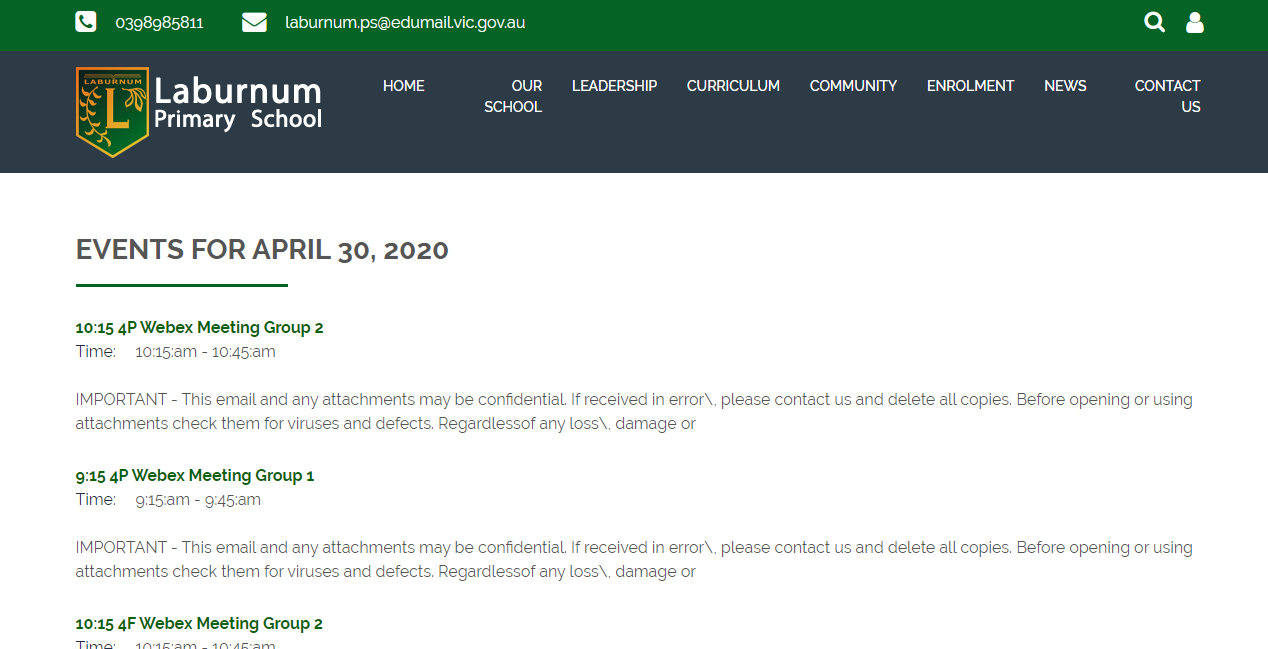
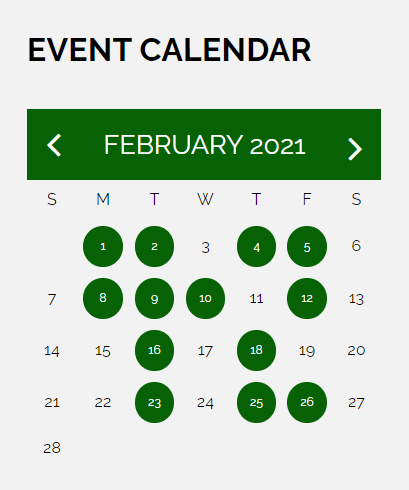
Scroll to the bottom of the website Home Page Event Calendar. Click on the green dot on any date – it will open all the class meetings for that day, if any are scheduled.
By clicking on any class meeting event on the Events List, you can download this to your own calendar.
To see every class meeting:
Go to the calendar view, where you can see all confirmed meetings.

Looking forward to an exciting experience for everyone!
*** More information on Apps and joining meetings:
Please note that Eduvic Webex is the secure DET site for Webex school users. Webex is the preferred video-conferencing option for remote learning.
Eduvic Webex is part of the DET EduSTAR software platform for schools. It provides secure access to Webex for our students and staff, and is supported by our school technician. For this reason, we do not provide the Webex app on school devices.
Webex app on the apple store: click here
Webex app on the google store click here
This Cisco website details the many ways you can join a meeting, if you'd like to know more: click here

© Copyright Laburnum Primary School